 Moon Suite
Widgets
Menu board: items and prices, typed in or from a sheet
A menu that’s easy to change: type the items in, or keep them in a Google Sheet and change a price in one cell.
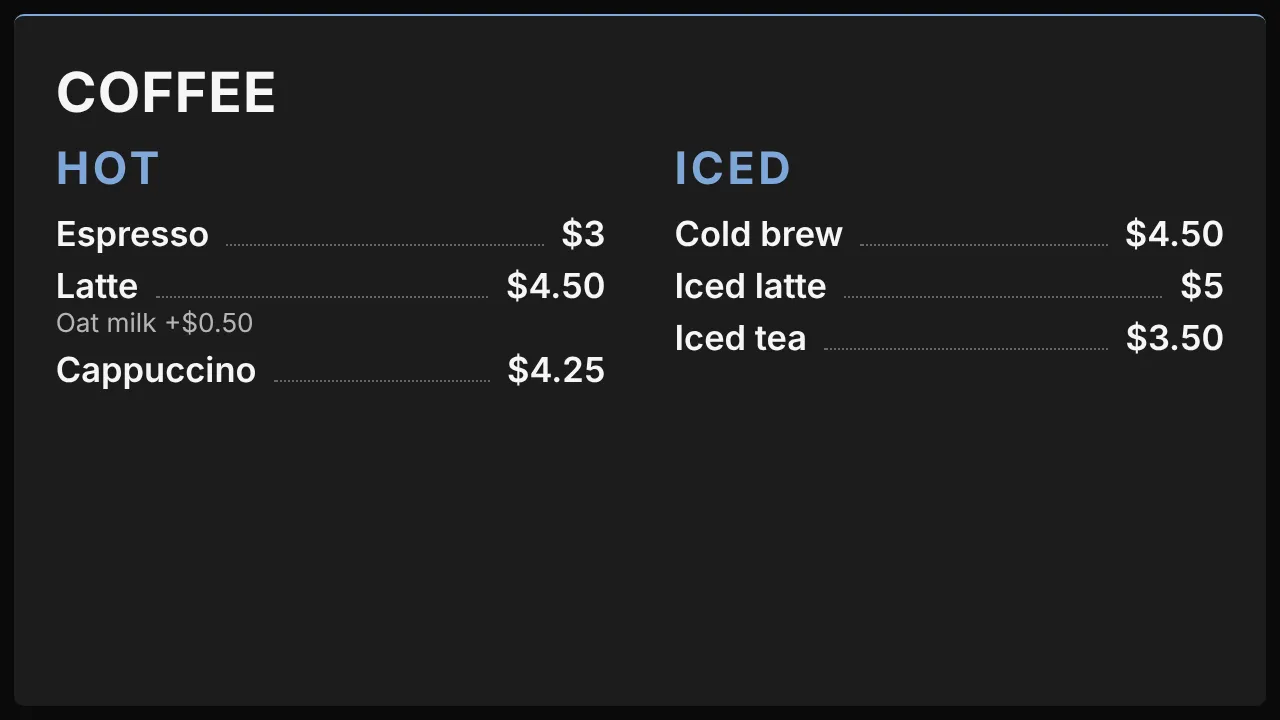
What it shows
A title, then your items under section headings. As a list, each item has its price at the end of a dotted line and its note under it. As photos, each item is a card with its picture.
Add it
Drag Menu board from the Widgets list onto the grid, or tap an empty cell and pick it. Click it to open its settings: on a computer in the panel on the right, on a phone in a sheet from the bottom.
Settings
| Setting | What it does |
|---|---|
| Title | The heading over the menu. |
| Items | One row per item: Name, Price, Note, Image and Section. Ignored when a sheet is set. |
| Google Sheet (CSV link) | A sheet published to the web as CSV, with the columns Name, Price, Note, Image and Section. Only Name is needed. |
| Layout | list or photos. |
| Columns | 1 to 4, side by side. |
Like every widget, it also has a Background colour, and Show last updated, which marks when it last refreshed its data. Late data is always marked.
Reading prices from a sheet
- In Google Sheets, use File > Share > Publish to web, and publish the sheet as CSV.
- Name the columns
Name,Price,Note,ImageandSection. - Paste the link into Google Sheet (CSV link).
The menu reads the sheet every 5 minutes. If a refresh fails, the last prices stay on screen with their age. The full story is in menus on a schedule.