 Moon Suite
Screens and schedules
Breakfast at 6, lunch at 11: menu boards on a schedule
Omar used to switch the menu TVs from breakfast to lunch by hand, if he remembered. Now the screens change on the clock, and a price change is one cell in a spreadsheet.

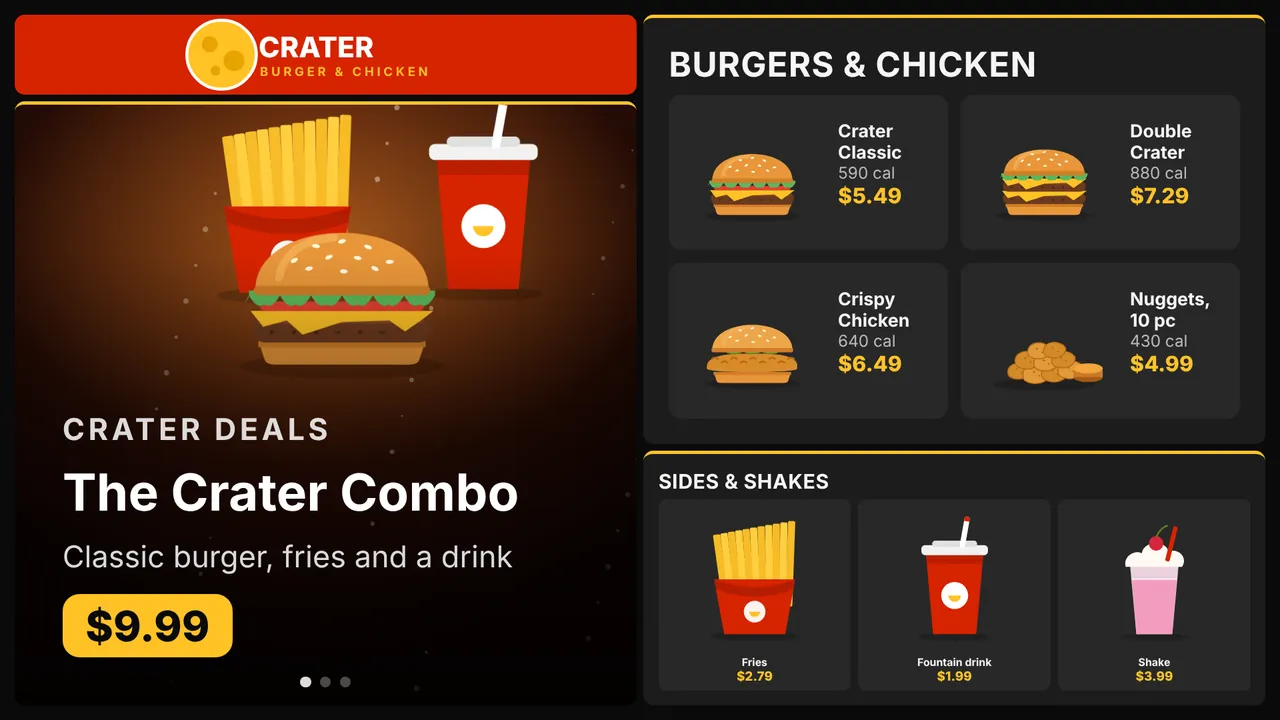
Two menus, one TV, and a manager who forgets
Crater Burger & Chicken opens at six with breakfast and switches to lunch at eleven. The menu TVs above the counter used to switch when Omar walked to the back office and changed them, which on a busy morning meant about twenty past eleven.
He wanted the screens to change on the clock, show a deal between menus, and take a price change without anyone climbing a ladder.
Every minute the breakfast menu is up after eleven, someone orders a hash brown we’ve stopped making.
One moon per menu
Omar started from the Quick-service menu board template: a logo bar, a rotating banner of deals with their prices, and two photo menus. He made it twice, once as “Breakfast” and once as “Lunch”, and gave each its own items.
Menu items are typed in a row editor: one row per item, with a box for its name, price, note, picture and section. Items with the same section are listed under one heading.
Put the menus on a schedule
- Open Screens and click Schedule on the counter screen.
- Click Add time slot. Choose the days, set from 06:00 and to 11:00, and pick the Breakfast moon.
- Add a second slot, 11:00 to 22:00, for Lunch.
- Under the slots, choose what the screen shows when no slot matches. Omar picked a moon with the store hours, for before opening.
The first slot that matches wins, so order matters when two slots overlap. A slot whose end is before its start runs past midnight, which suits a late-night menu.
Every screen on the same schedule shows the same moon at the same moment, so the two menu TVs above the counter never disagree.
Rotate a deal between menus
A time slot can show a cycle instead of one moon: the menu, then the deal, then the menu again, each for its own seconds, from 5 seconds to an hour. Omar’s lunch slot shows the lunch menu for 50 seconds and the combo deal for 10.
The next moon in a cycle is drawn a few seconds early, out of sight, and fades in, so the counter never sees a half-drawn menu.
A moon in a cycle can be skipped while it has nothing to show: a menu reading a sheet with no rows, say, or one whose data is older than the minutes you set. If every moon in the cycle is skipped, the one on screen stays.
Change prices from a sheet
Typing prices into the editor is fine for one store. Omar’s owner keeps prices for three stores in a Google Sheet, so the menu reads that sheet instead.
- In Google Sheets, use File > Share > Publish to web, and publish the sheet as CSV.
- Give the sheet the columns
Name,Price,Note,ImageandSection. OnlyNameis needed. - Paste the CSV link into the menu widget’s Google Sheet (CSV link) setting.
The menu refreshes every 5 minutes. A sheet that can’t be read shows “No data” with the reason, and a later failed refresh keeps the last prices on screen with their age, so a hiccup at Google never blanks the menu.
About the story. The people and businesses in these guides are made up. They show how we expect a moon to be used, not the experience of real customers.

