 Moon Suite
Start here
Put your first moon on the waiting-room TV
Nadia’s waiting room had a TV playing cable news nobody chose. Here is how she swapped it for the clinic’s own screen, with a template, her logo and a code typed into a browser.

The TV nobody chose
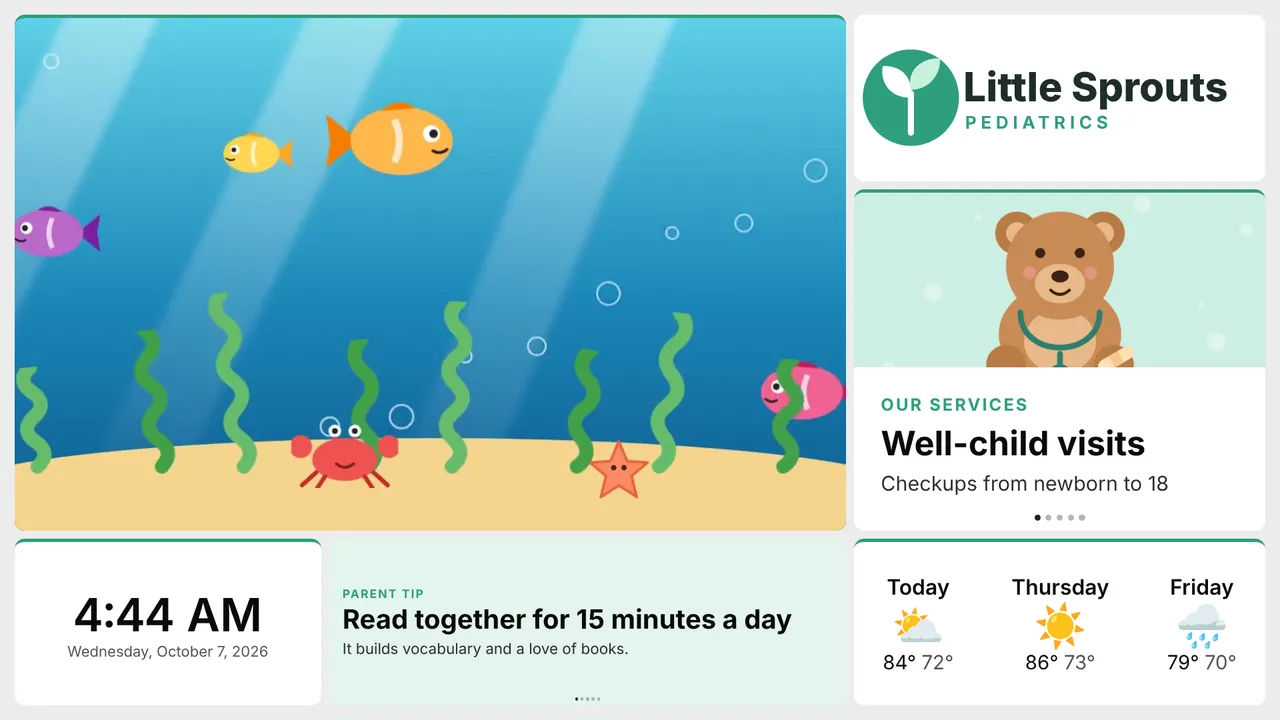
At Little Sprouts Pediatrics the waiting-room TV was on from eight to six. It played whatever the cable box was tuned to, which was usually the news. Parents watched the door. Kids watched the news.
Nadia, at the front desk, wanted the screen to say something useful: which services the clinic offers, a tip for parents, the time, and something calm for the kids. She had no designer, no budget for a signage box, and about ten minutes between patients.
I didn’t want another thing to manage. I wanted the TV to stop being noise.
Sign in, and let setup do the first draft
At moonsuite.live she signed in with her Google account. An email link or a password works too.
The first sign-in opens setup, three short steps that build the first draft for you. Every step can be skipped.
- What kind of place is this? Nadia picked Clinic, dentist or vet.
- Your brand kit. The clinic’s name, its logo, two colours and a font. The brand kit is kept in Moon settings, and every new moon starts from it.
- A template. The picker is narrowed to her kind of place, so the first one offered was the Pediatric waiting room.
The template arrived with her logo and colours already on it.
Make it hers
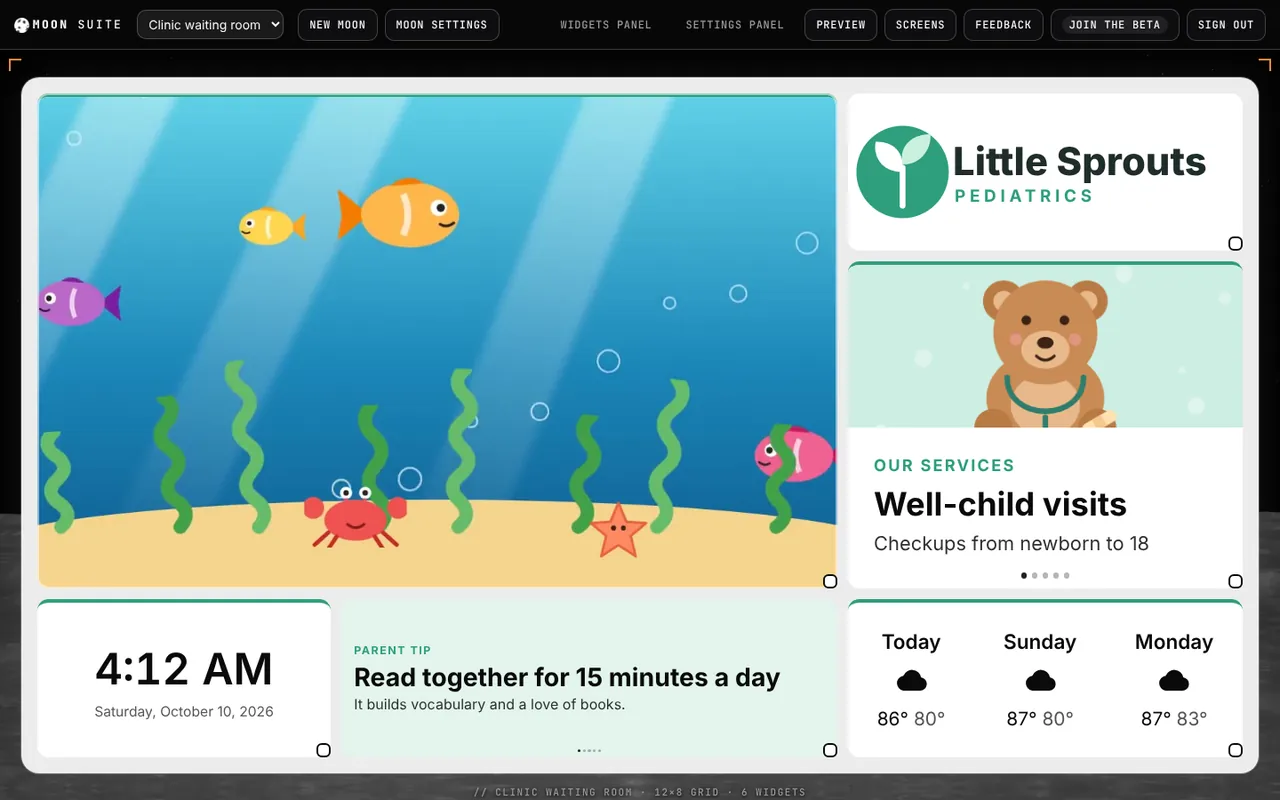
A moon is a grid of widgets. Nadia’s has six: a looping film, the logo, a rotating banner of services, a banner of parent tips, the clock with the date, and a three-day forecast.
- Change a widget. Click it and edit its settings. On a computer they open in the panel on the right; on a phone, in a sheet from the bottom.
- Move or resize it. Drag the widget, or drag its corner.
- Add one. Drag it from the widget list onto the grid, or tap an empty cell.
- Pictures. Wherever a widget takes one, switch between URL to paste a link and Upload to use a photo from your phone or computer.
She rewrote the services to the ones the clinic offers and swapped the parent tips for her own. There is no Save button: changes save as you make them.
Pair the TV
This is the part Nadia expected to be hard.
- On the TV, she opened the web browser and went to
moonsuite.live/tv/. It works in the browser of an LG or Samsung TV from 2018 or later, or of a computer plugged into the TV with HDMI. - The TV showed a 6-character pairing code in large letters. The code changes every 30 minutes, so there is no rush.
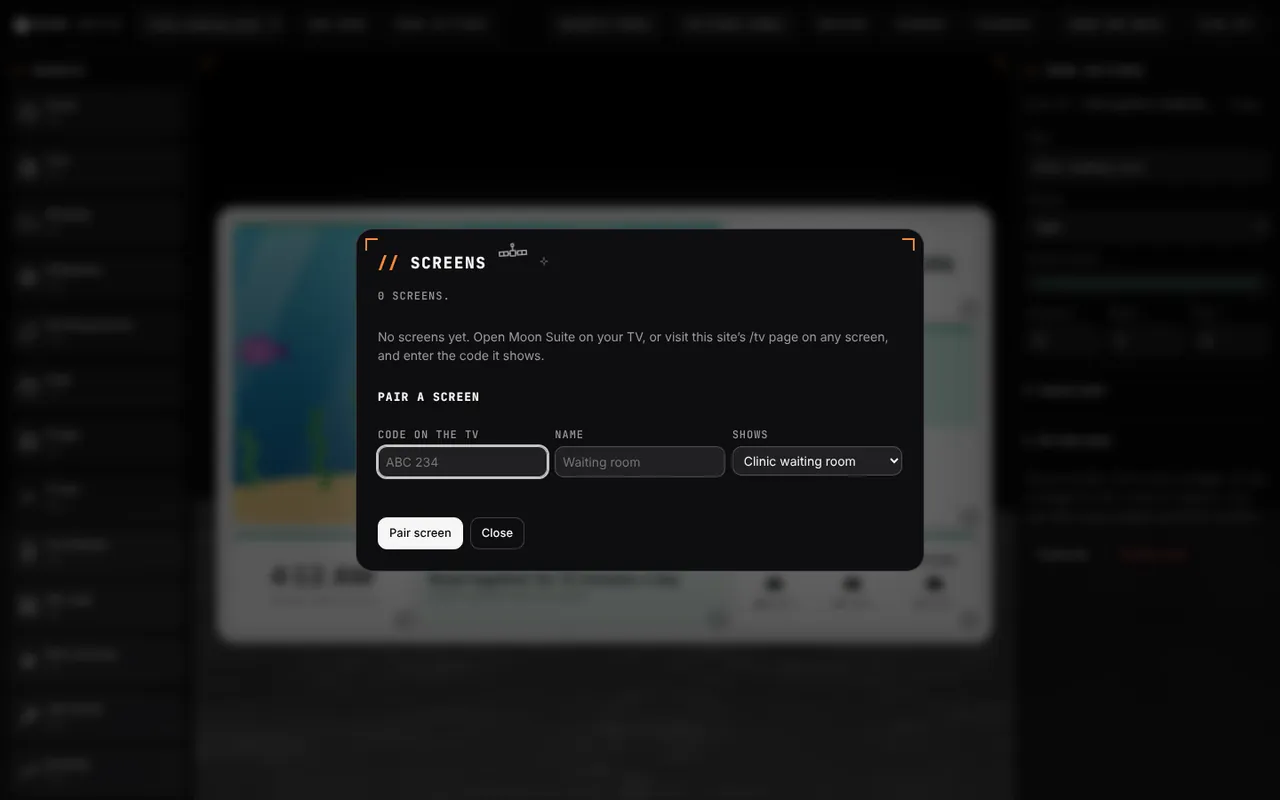
- Back in the editor, she opened Screens, typed the code under Code on the TV, named the screen “Waiting room”, picked the moon under Shows, and pressed Pair screen.
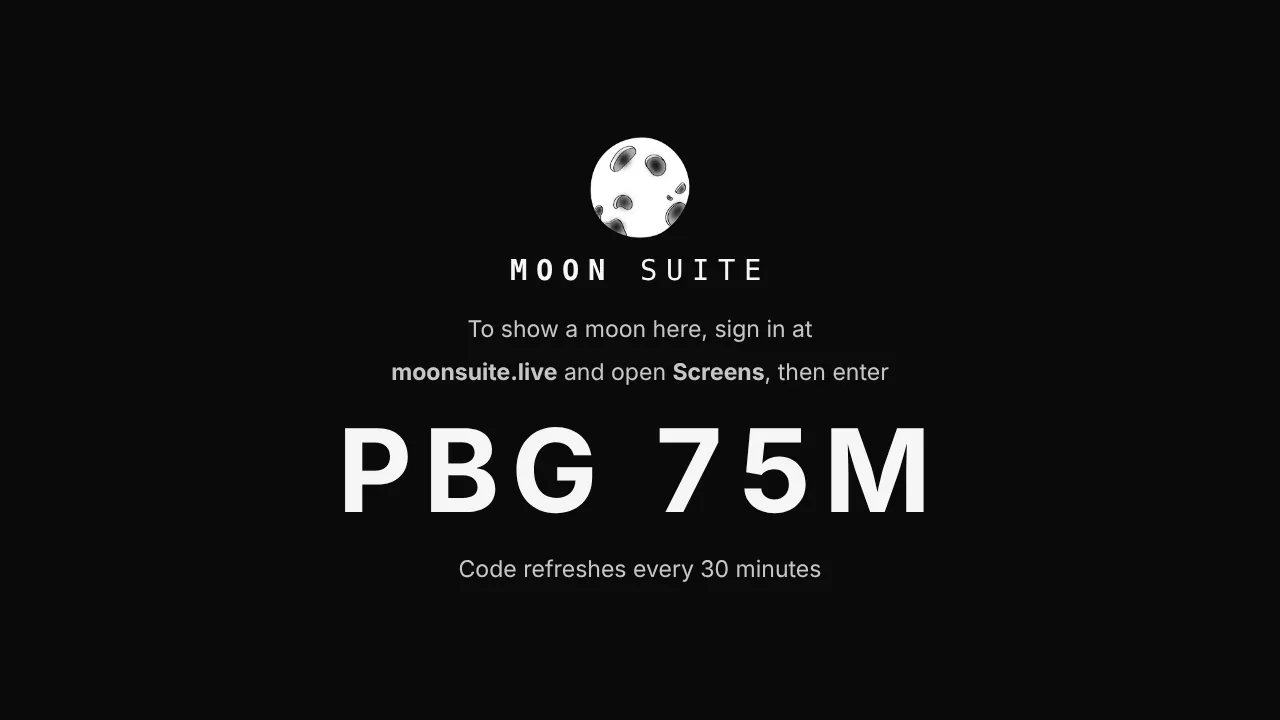
The TV switched to her moon within a second. From then on, every change she makes in the editor shows on the TV a moment later, with nothing to restart.
Check it before the waiting room does
The Preview button shows the moon full-screen on your own computer, exactly as the TV will draw it. It is the quickest way to read a banner from “across the room” before a parent does.
If the TV hangs on its side, as menu boards often do, set Moon settings > Orientation to portrait. A TV turned on its side still sends a landscape picture, so in Screens you tell Moon Suite which way that TV was turned, and it turns the moon to fit.
What she has now
The waiting room shows the clinic’s own screen: calm for the kids, useful for the parents, and changed from the front desk in seconds. When the clinic adds flu shots in October, Nadia edits one banner, and the TV has it before the next patient sits down.
About the story. The people and businesses in these guides are made up. They show how we expect a moon to be used, not the experience of real customers.

