 Moon Suite
Widgets
Video: a clip, a stream, or a YouTube link
A clip that loops all day, or a live stream, in part of the screen or all of it.

What it shows
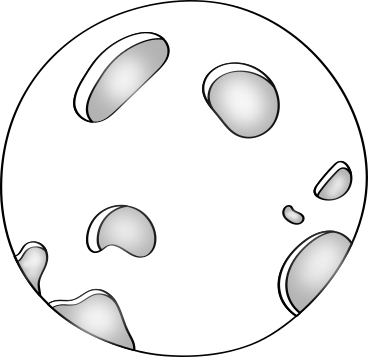
The video, filling its widget. It is two cells by two when you add it; drag it to cover the whole moon for a full-screen film.
Add it
Drag Video from the Widgets list onto the grid, or tap an empty cell and pick it. Click it to open its settings: on a computer in the panel on the right, on a phone in a sheet from the bottom.
Settings
| Setting | What it does |
|---|---|
| Video or stream URL | An MP4 or WebM file, an HLS stream (.m3u8), or a YouTube or Vimeo link. |
| Still image while loading | A picture shown until the video starts. |
| Muted | On by default. |
| Loop | Starts over at the end. On by default; ignored for live streams. |
| Player | auto uses the TV’s own player where it plays the stream well. Try native or library if a stream stutters or won’t start. |
Like every widget, it also has a Background colour. Text on it turns black or white to stay readable.