 Moon Suite
Signage, plainly
Loop a video and photos on a shop TV, without a laptop or casting
Marisol tried casting the cafe’s promo video from her phone. It stopped every time she took a call. Now the video and photos loop on the TV by themselves.

Why casting keeps stopping
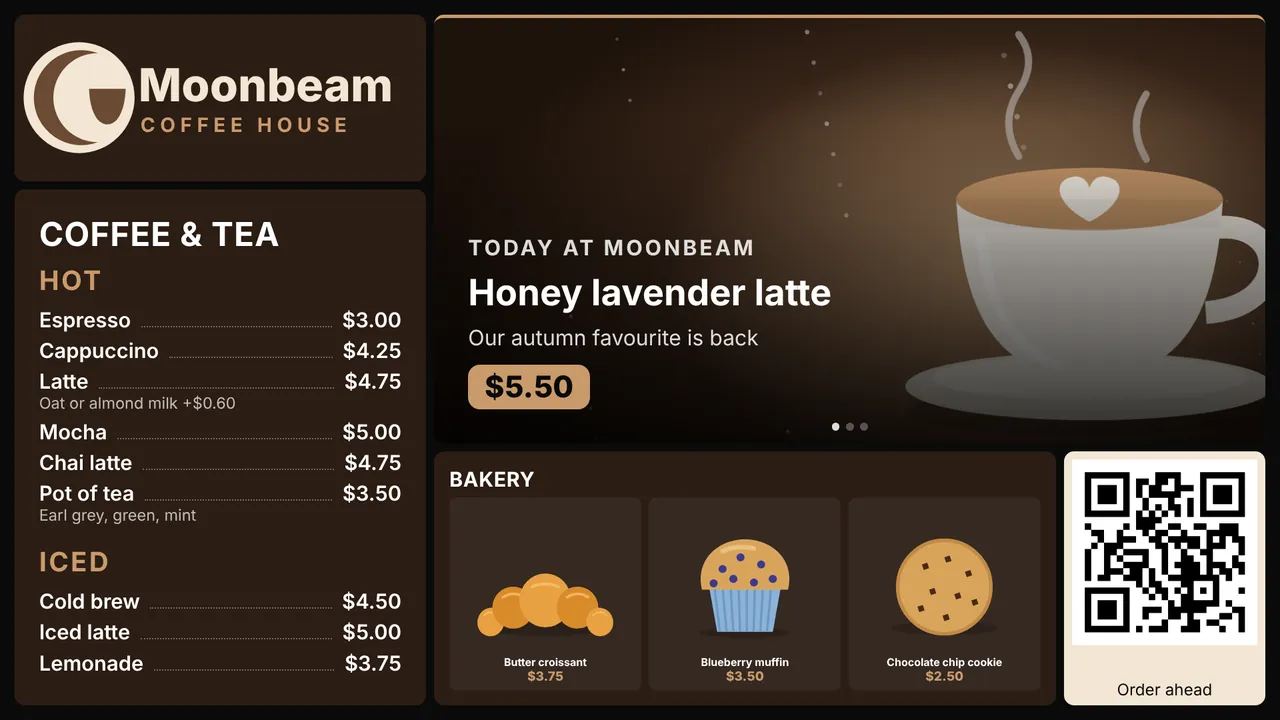
A local roaster made Moonbeam Coffee House a thirty-second video of their beans. Marisol wanted it on the counter TV, all day.
She tried casting it from her phone. It played, until she answered a call, or walked to the storeroom out of Wi-Fi range, or her phone locked. A tablet propped behind the counter did better, until someone needed the tablet. A laptop on HDMI worked for a week, then updated itself one morning and sat on a restart screen.
Each of those ties the TV to another device that has other jobs. The fix is to let the TV play the loop itself.
I wanted the video to be the TV’s job, not my phone’s.
A video that loops by itself
- In the editor, add a Video widget and stretch it over the part of the screen it should fill.
- Paste the video’s link. An MP4 or WebM file, an HLS stream (
.m3u8), or a YouTube or Vimeo link all work. - Leave Muted and Loop on. TVs refuse to start a video with sound by themselves, so a muted loop is the one that keeps going.
- Optionally set Still image while loading, so the space is never blank while the video starts.
YouTube and Vimeo links always play muted and looping. Where the video lives is up to you: a link to a file in your website’s storage or a public cloud folder works, as long as it opens without signing in.
Photos around it
Marisol’s video takes the left half of the screen. On the right, a Slideshow widget turns through her photos every ten seconds, and the drinks list sits underneath. Photos come straight from her phone with Upload, or from a link.
Because each widget is its own box, the video and the photos play side by side, and the prices stay readable the whole time. A video on its own, full-screen, is one widget stretched over the whole grid.
Video now, menu next
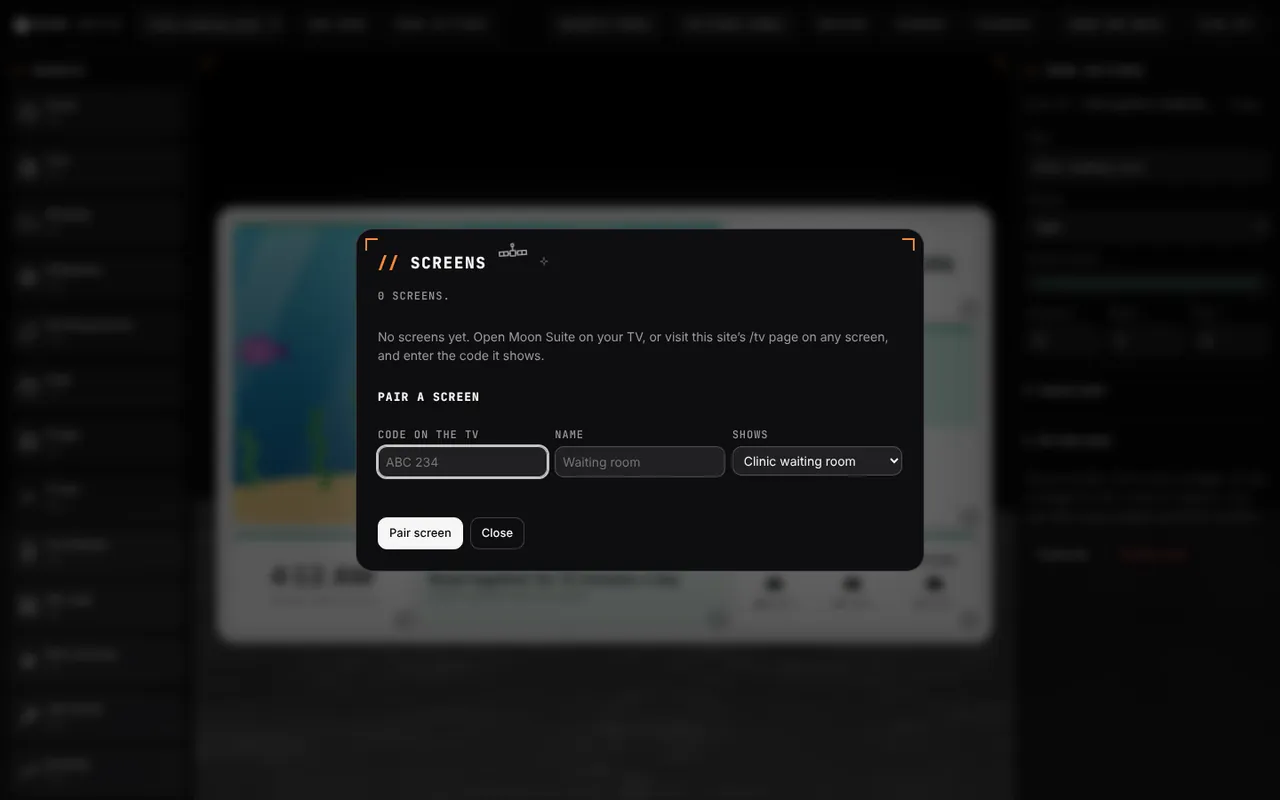
If the video should take the whole TV for a while and then give way to the menu, make two moons and put them in a cycle on the screen’s schedule: the video moon for 30 seconds, then the menu for 60. See menus on a schedule for how schedules and cycles work.
About the story. The people and businesses in these guides are made up. They show how we expect a moon to be used, not the experience of real customers.


